> ## Documentation Index
> Fetch the complete documentation index at: https://kardow.com/docs/llms.txt
> Use this file to discover all available pages before exploring further.
# Indexing API
> Learn how to use the Kardow Indexing API to notify search engines about new and updated job listings
The Indexing API allows you to programmatically notify search engines when job listings are created, updated, or removed from your job board. This helps ensure your jobs appear in search results as quickly as possible.
## Overview
Adding the Google Indexing API helps your jobs get indexed by Google much faster.\
Instead of waiting weeks for jobs to appear in search results, the Indexing API can get them listed on Google Jobs
within 24 hours — driving significantly more visitors to your site.
## What you’ll need
* A **Google Cloud** account
* A **Google Search Console** property (your site must be verified)
* A few minutes of setup time
***
## Step 1: Create a Google Cloud project
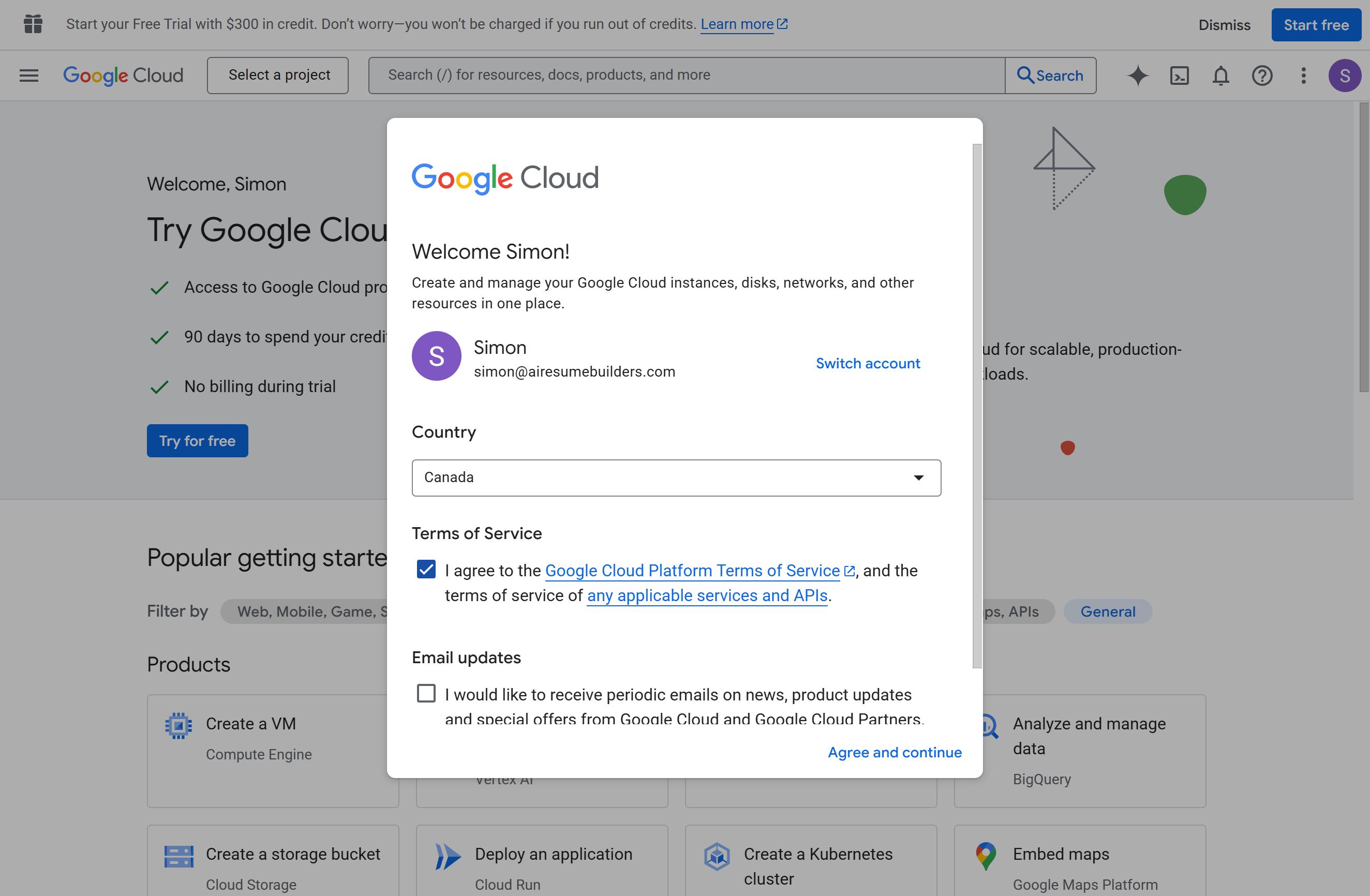
1. Go to the [Google Cloud Console](https://console.cloud.google.com/).
2. Accept the terms of service if prompted.\\
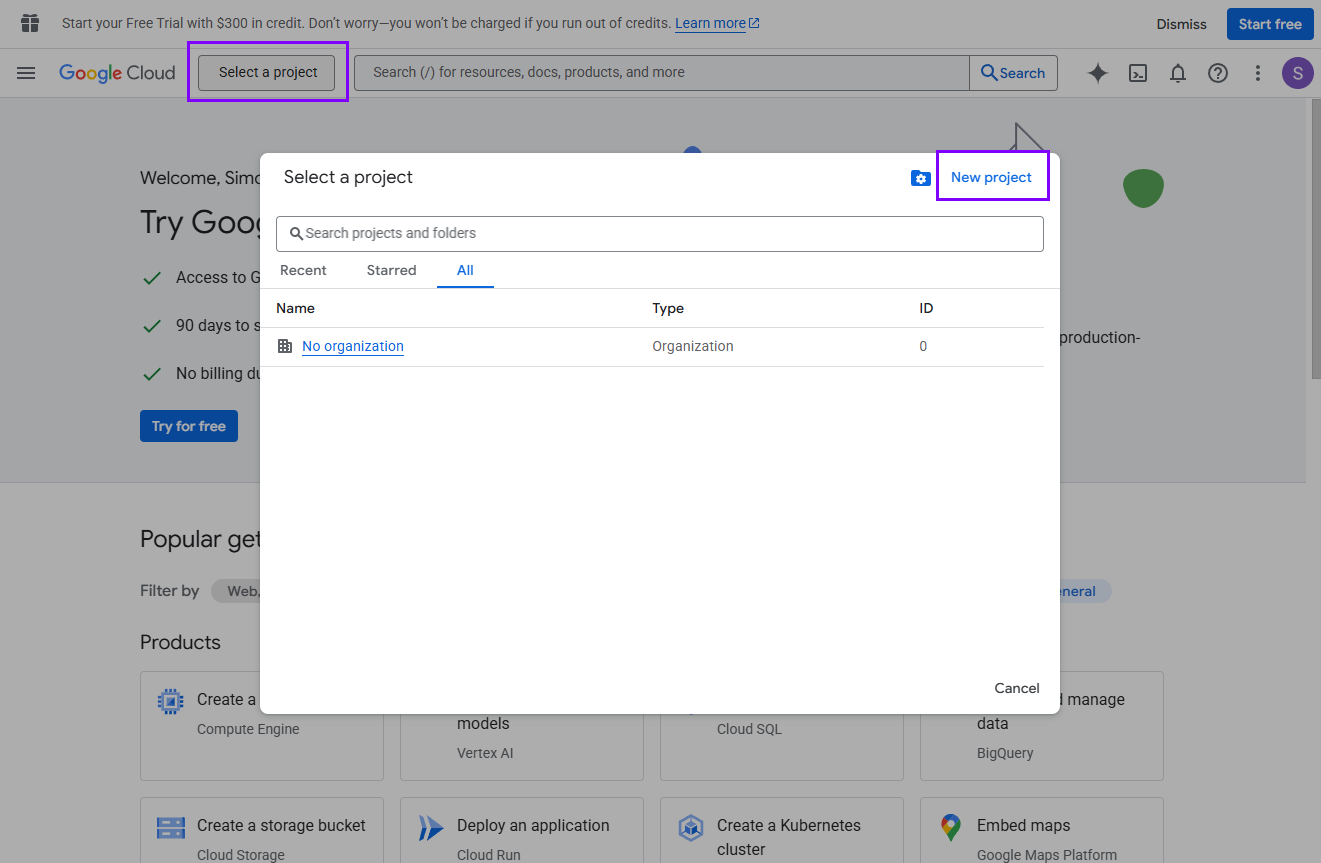
 3. Click **Select a project** → **New Project**.\\
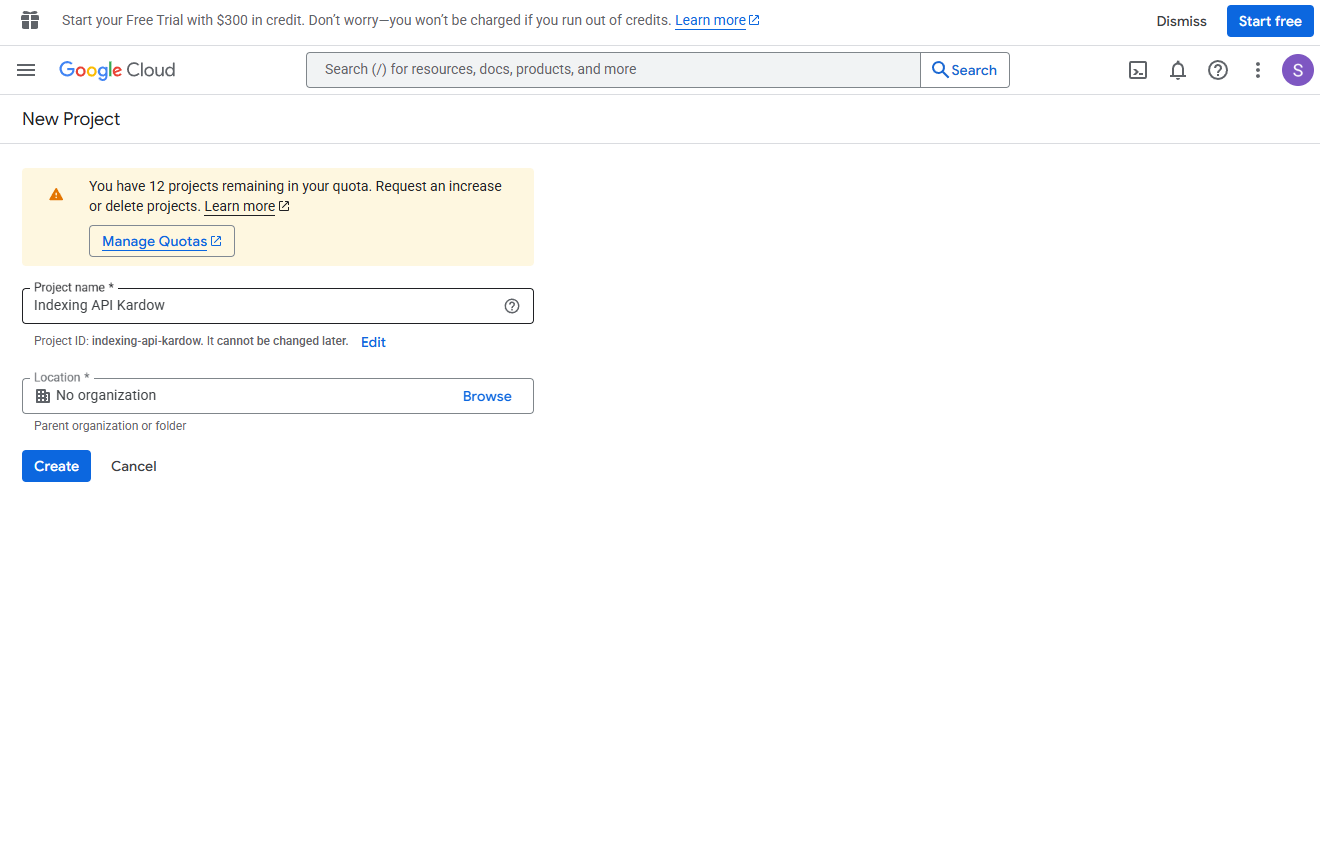
 4. Give it a name such as `Indexing API Kardow`, then click **Create**.\\
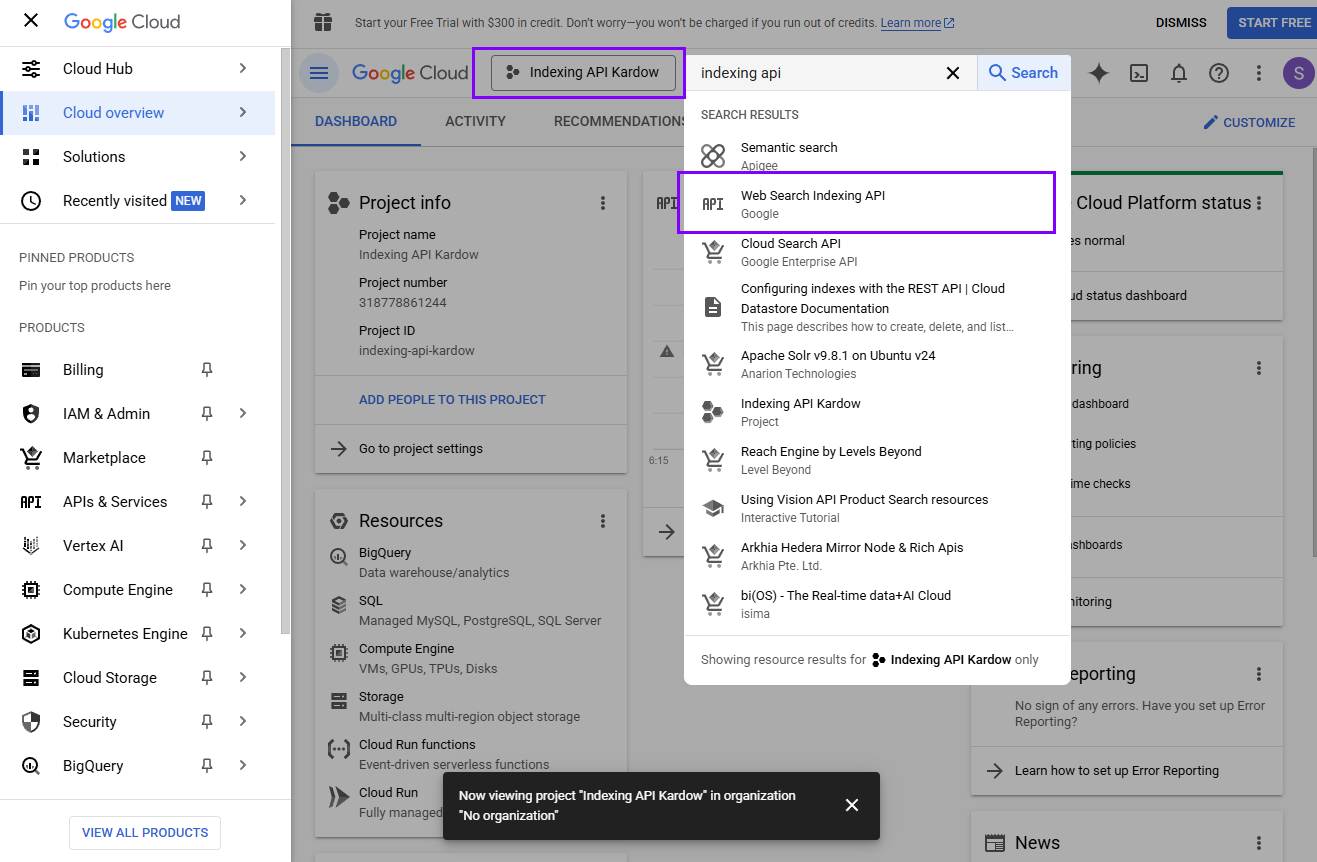
 5. Once created, click **Select project**.
6. In the search bar, type **Indexing API** and select **Web Search Indexing API**.\\
5. Once created, click **Select project**.
6. In the search bar, type **Indexing API** and select **Web Search Indexing API**.\\
 7. Click **Enable** to activate the API.\\
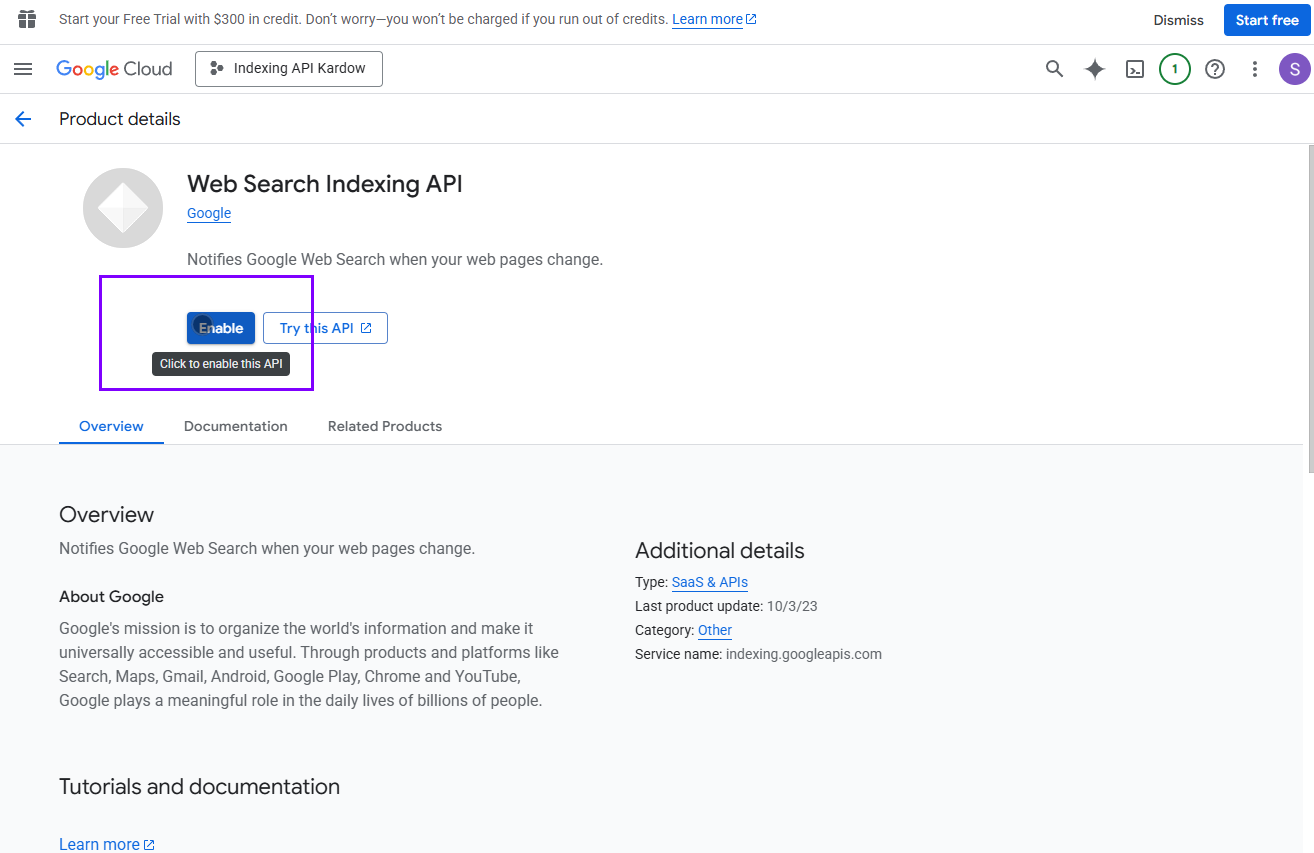 8. When enabled, go to **APIs & Services → Credentials**.
***
## Step 2: Create a service account
1. Click **+ CREATE SERVICE ACCOUNT**.\\
8. When enabled, go to **APIs & Services → Credentials**.
***
## Step 2: Create a service account
1. Click **+ CREATE SERVICE ACCOUNT**.\\
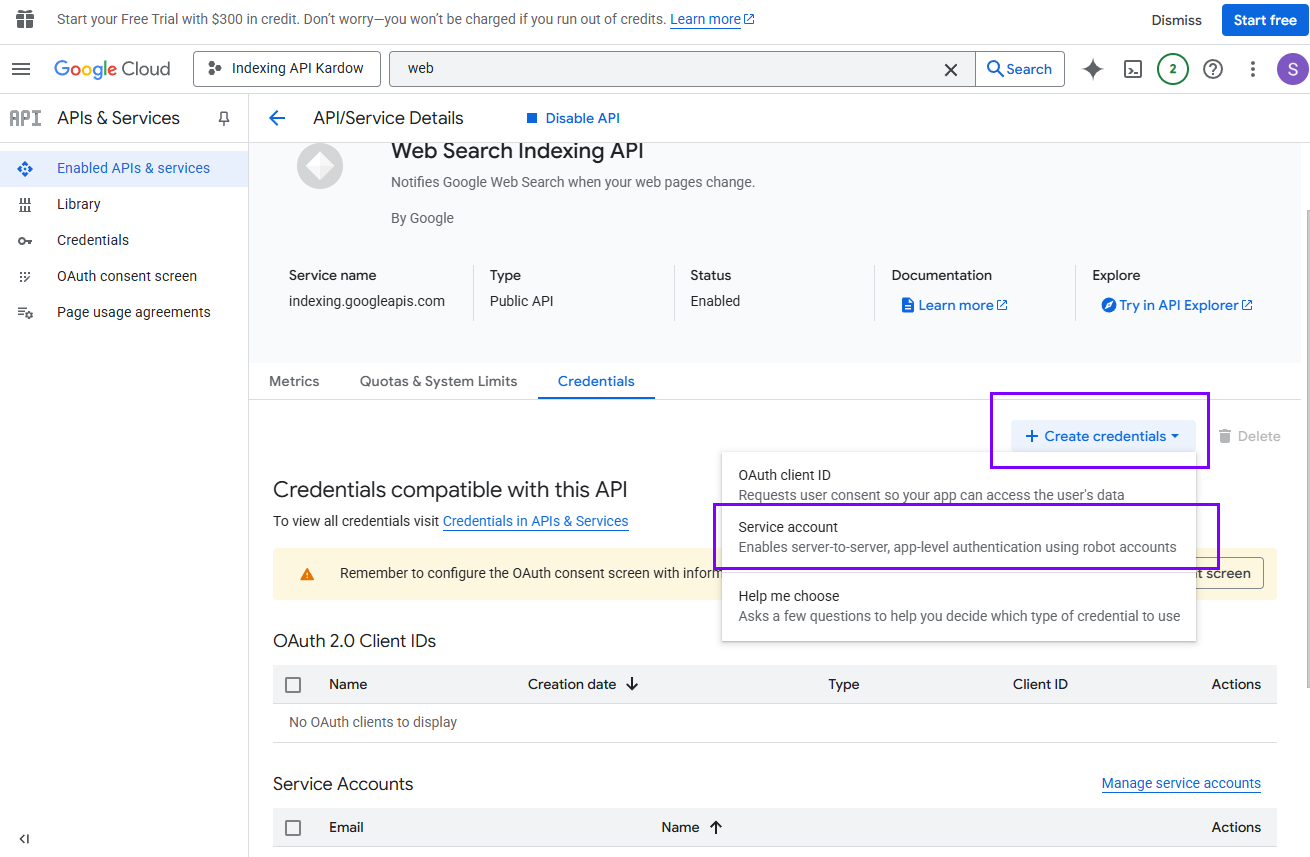 2. Name it something like `IndexingBot`.
3. Copy the **Service account email** — you’ll need it later (for example:\
`indexingbot@indexing-api-kardow.iam.gserviceaccount.com`).
4. Skip permissions and click **Done**.\\
2. Name it something like `IndexingBot`.
3. Copy the **Service account email** — you’ll need it later (for example:\
`indexingbot@indexing-api-kardow.iam.gserviceaccount.com`).
4. Skip permissions and click **Done**.\\
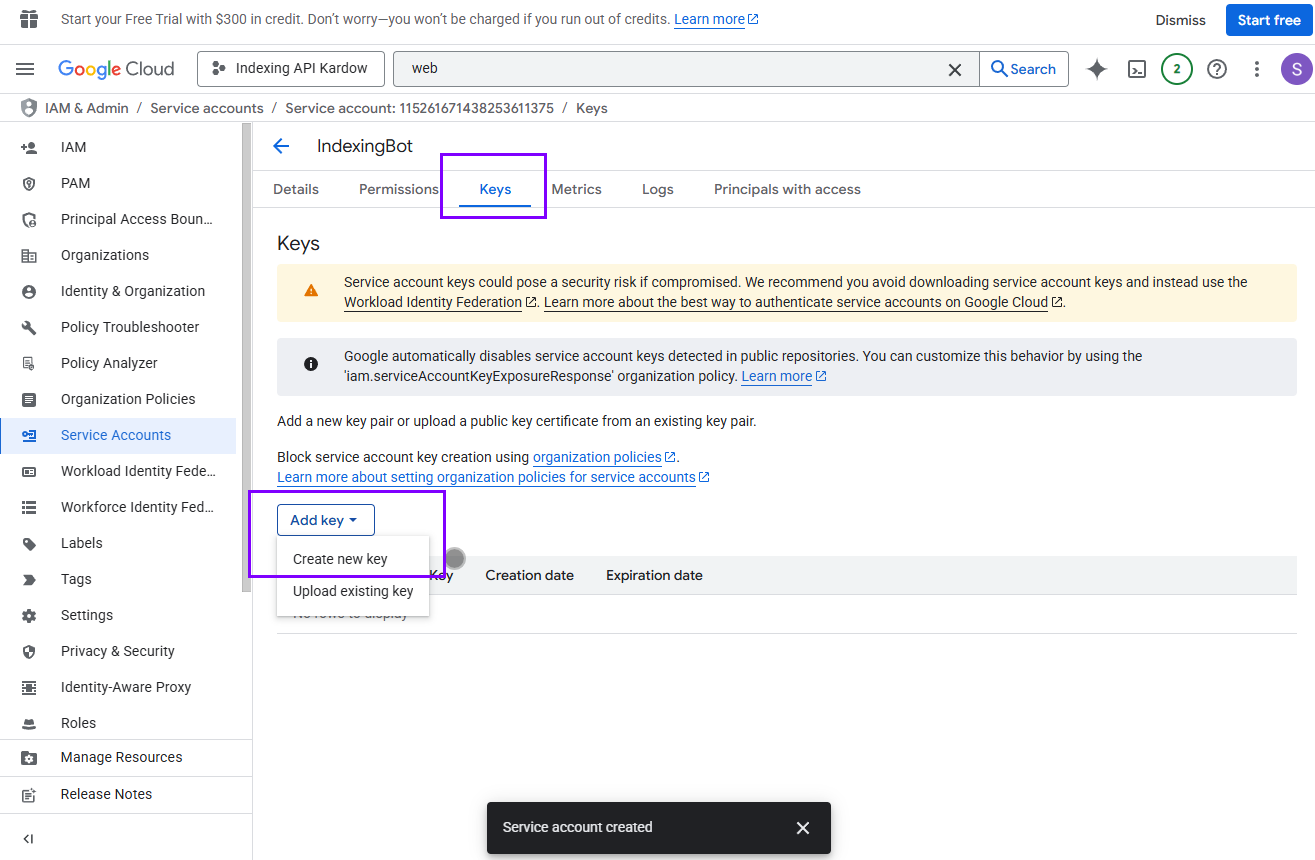
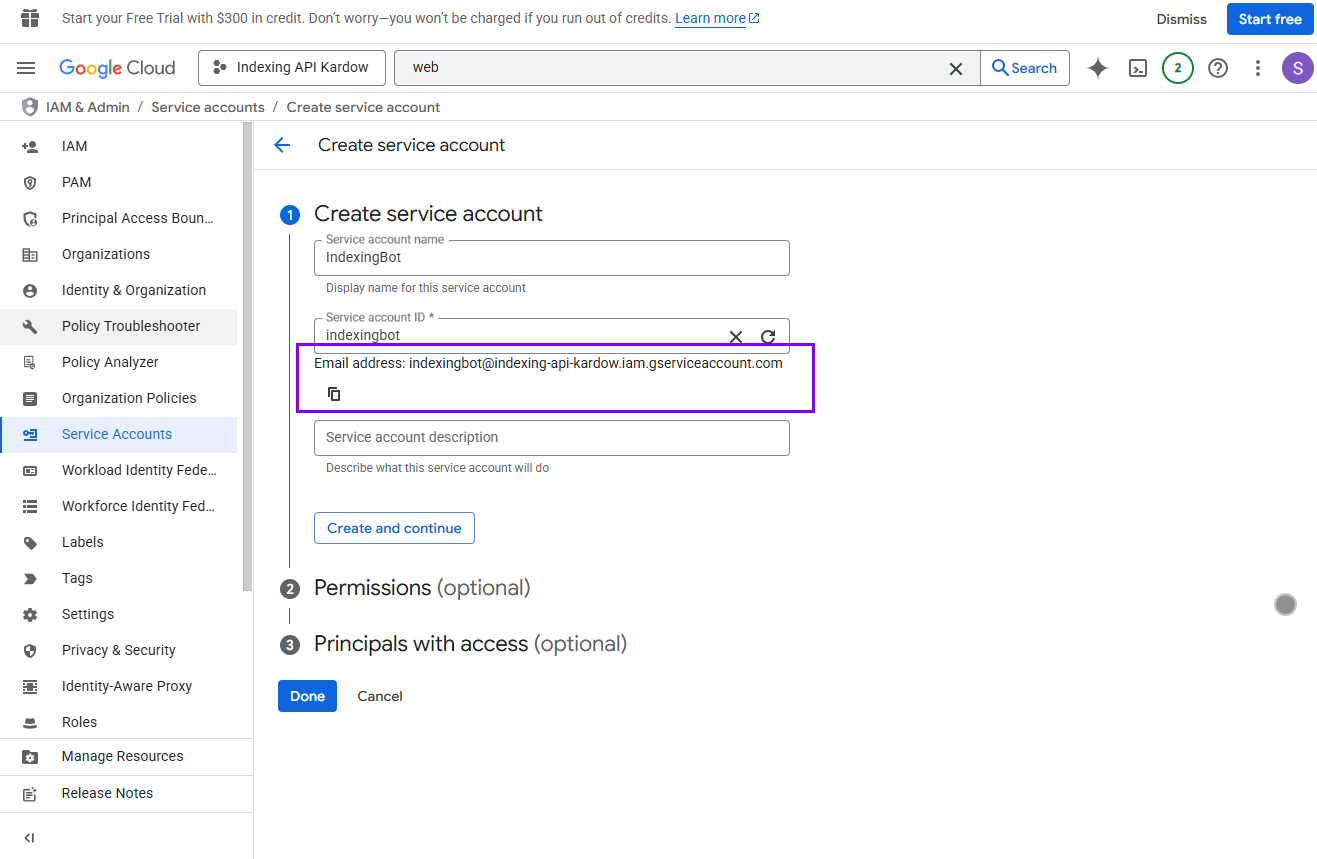 5. In the list, click your new service account → open the **Keys** tab.
6. Click **Add Key → Create new key → JSON**.\\
5. In the list, click your new service account → open the **Keys** tab.
6. Click **Add Key → Create new key → JSON**.\\
 \*\*If this fails \*\* : (You might see this error message if this is a new account) - follow these steps below to fix this fast.
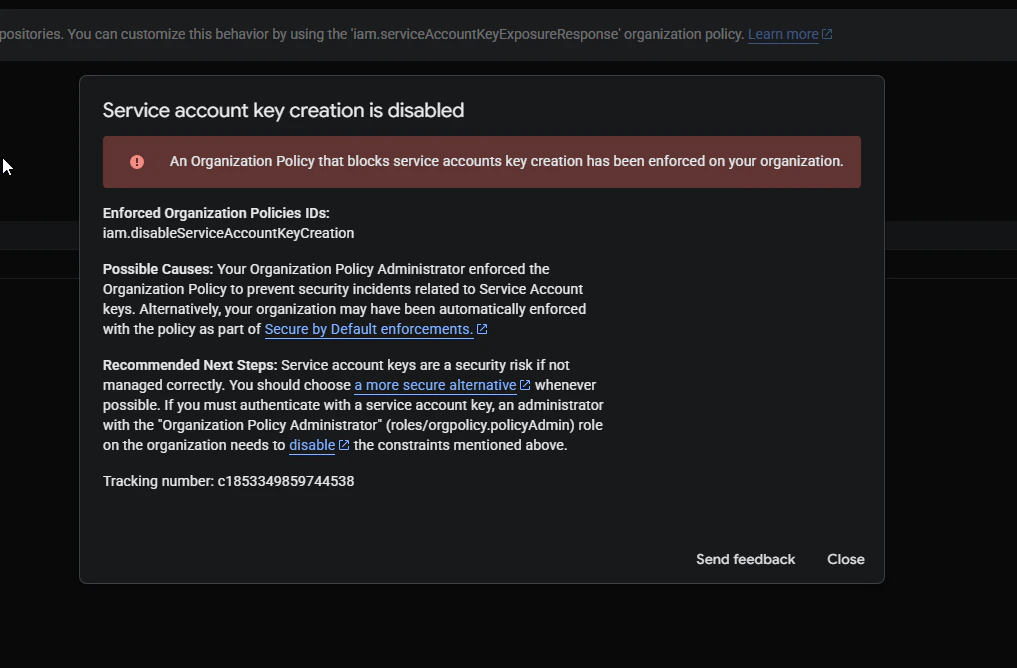 1. You need to click to select the project/organization at the top left
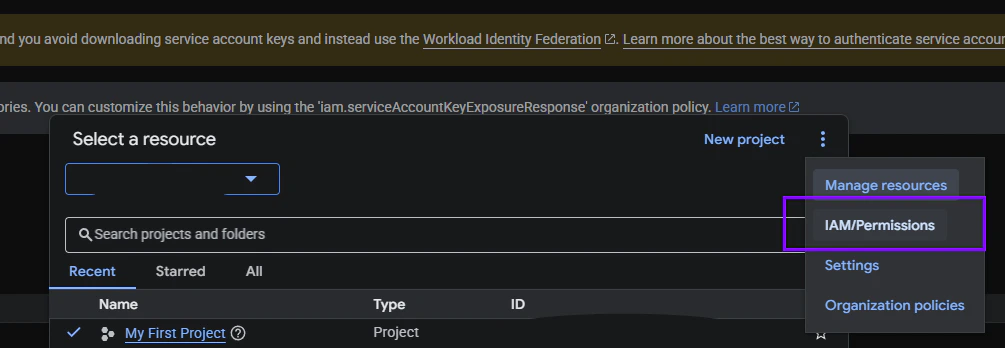
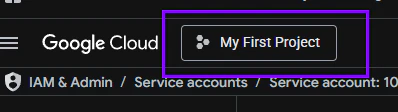 Click on "More Action" (the 3 points on the right side) & Click on IAM/PERMISSIONS
 \
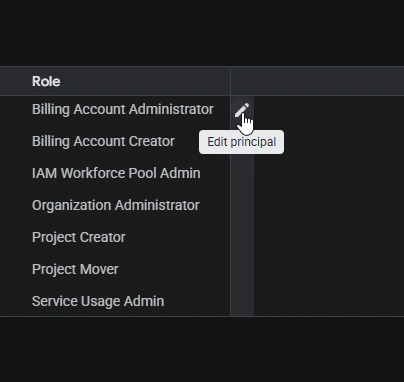
5- Edit your user and add Roles: "Organization Policy Administrator" and "Organization Administrator". (Note that Organization Policy Administrator should be visible at this level, if you are at the project level, this policy won't be available in the list).
\
5- Edit your user and add Roles: "Organization Policy Administrator" and "Organization Administrator". (Note that Organization Policy Administrator should be visible at this level, if you are at the project level, this policy won't be available in the list).
 \
6- Now with those 2 roles, click on "Organization Policies" under IAM & Admin or repeat points 2/3 above and then select "Organization Policies".\
7- Search for "Disable service account key creation" and you should be able to click on Edit Policy and change the rule.
Ok now back to saving this inside kardow :
13. Save the `.json` file that downloads automatically — this file is your authentication key.
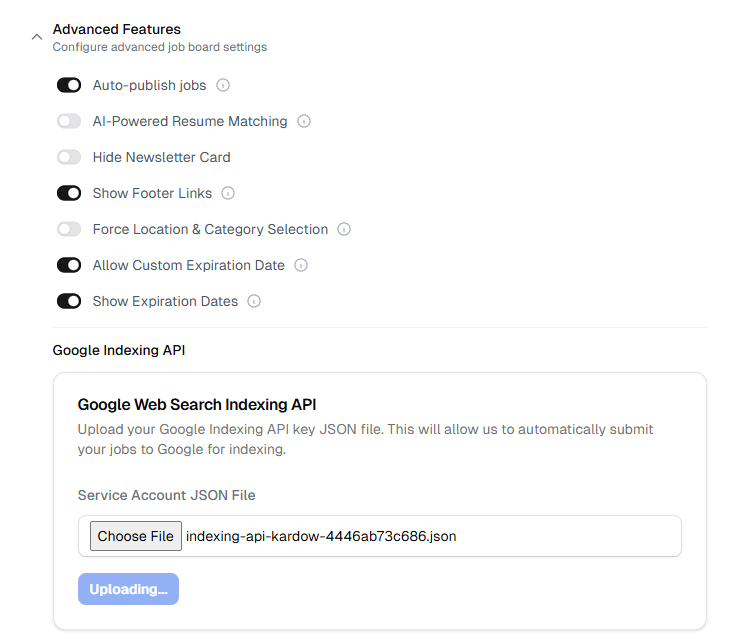
14. Go to your **Kardow dashboard → Settings → Advanced Features** and upload the `.json` file exactly as it is.
***
## Step 3: Verify site ownership in Google Search Console
1. Go to [Google Search Console](https://search.google.com/search-console/).
2. Add your site (click **Add property**) and follow the instructions to verify it.\
You can verify using an HTML file or DNS record.
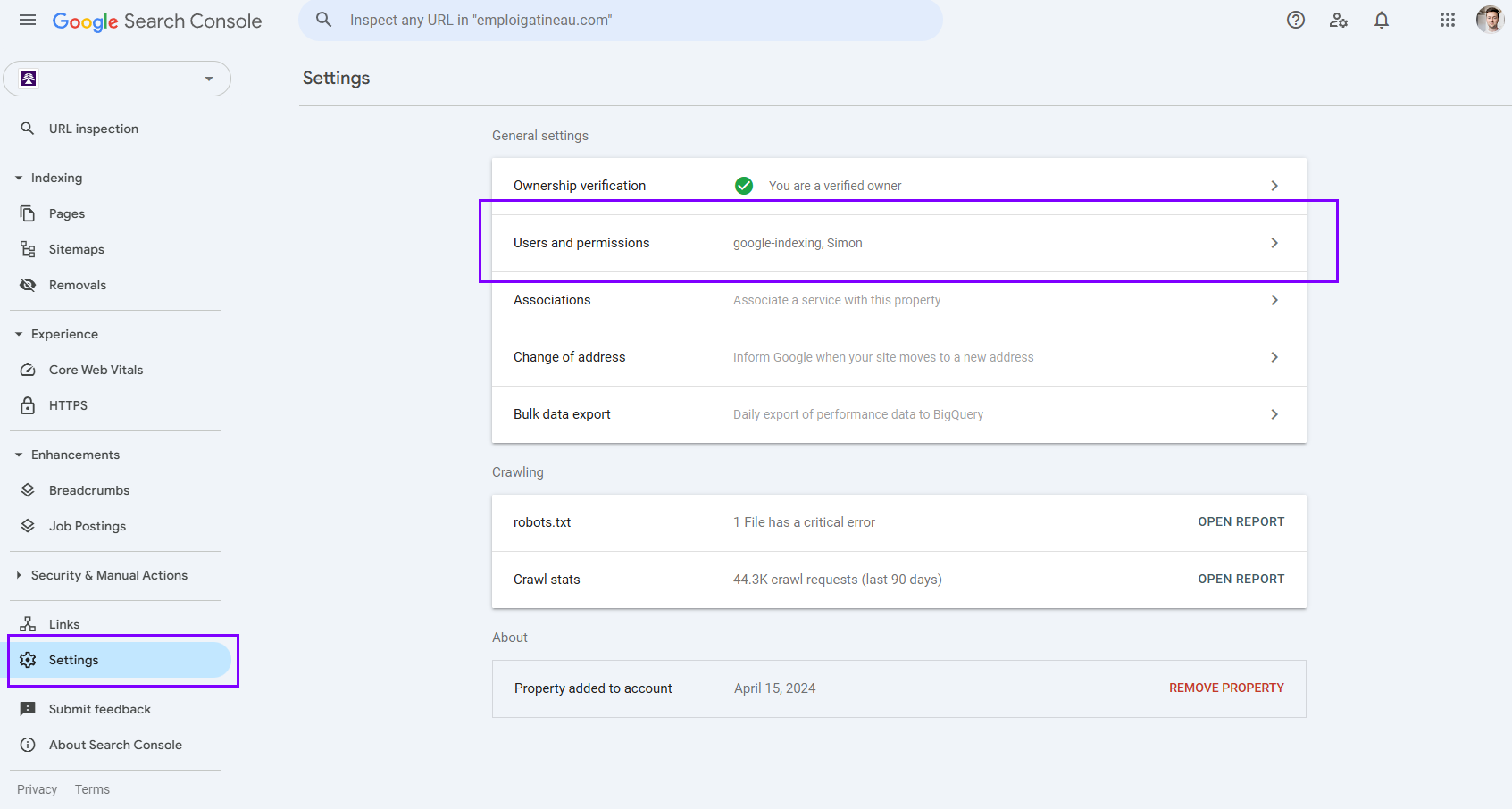
3. Once verified, open **Settings → Users and permissions**.\\
\
6- Now with those 2 roles, click on "Organization Policies" under IAM & Admin or repeat points 2/3 above and then select "Organization Policies".\
7- Search for "Disable service account key creation" and you should be able to click on Edit Policy and change the rule.
Ok now back to saving this inside kardow :
13. Save the `.json` file that downloads automatically — this file is your authentication key.
14. Go to your **Kardow dashboard → Settings → Advanced Features** and upload the `.json` file exactly as it is.

***
## Step 3: Verify site ownership in Google Search Console
1. Go to [Google Search Console](https://search.google.com/search-console/).
2. Add your site (click **Add property**) and follow the instructions to verify it.\
You can verify using an HTML file or DNS record.
3. Once verified, open **Settings → Users and permissions**.\\
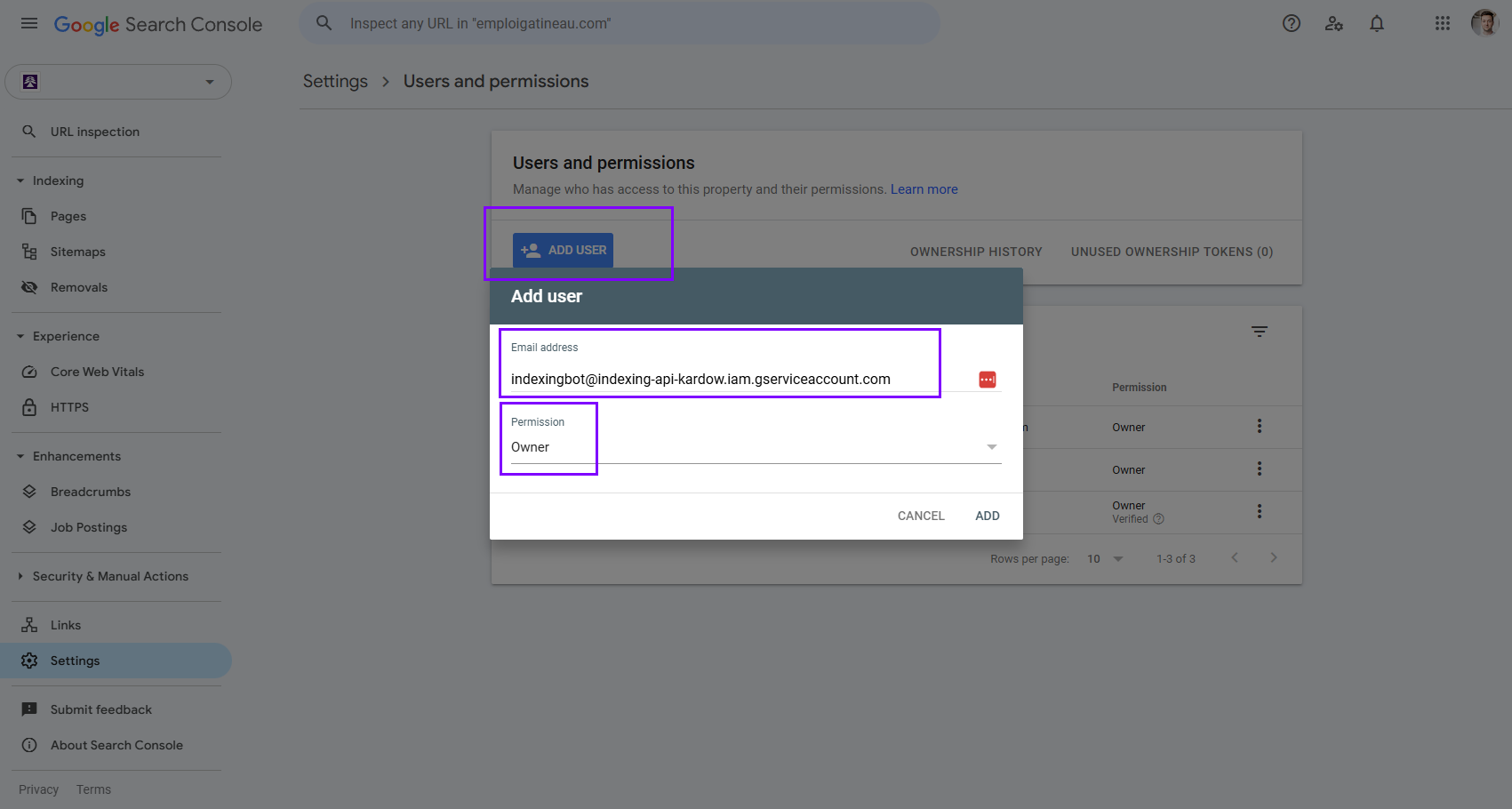
 4. Click **Add user** and paste the service account email you saved earlier.
5. Set the **Permission** to **Owner**.
> The Indexing API requires Owner-level access to work properly.
***
## Step 4: Verify and connect in Kardow
1. Return to your **Kardow dashboard**.
2. Make sure your service account file is uploaded.
3. Kardow will automatically start using the Indexing API to submit your new job URLs to Google.
***
## Result
✅ Once connected, Kardow will automatically notify Google when new jobs are posted.\
Most URLs will be indexed within **24 hours**, instead of waiting weeks for normal crawling.
***
## Notes
* Keep your `.json` key file safe — it contains sensitive credentials.
* You can reuse the same service account for multiple sites if needed.
* If verification fails, double-check the service account email’s permissions in Search Console.
4. Click **Add user** and paste the service account email you saved earlier.
5. Set the **Permission** to **Owner**.
> The Indexing API requires Owner-level access to work properly.

***
## Step 4: Verify and connect in Kardow
1. Return to your **Kardow dashboard**.
2. Make sure your service account file is uploaded.
3. Kardow will automatically start using the Indexing API to submit your new job URLs to Google.
***
## Result
✅ Once connected, Kardow will automatically notify Google when new jobs are posted.\
Most URLs will be indexed within **24 hours**, instead of waiting weeks for normal crawling.
***
## Notes
* Keep your `.json` key file safe — it contains sensitive credentials.
* You can reuse the same service account for multiple sites if needed.
* If verification fails, double-check the service account email’s permissions in Search Console.