

Overview
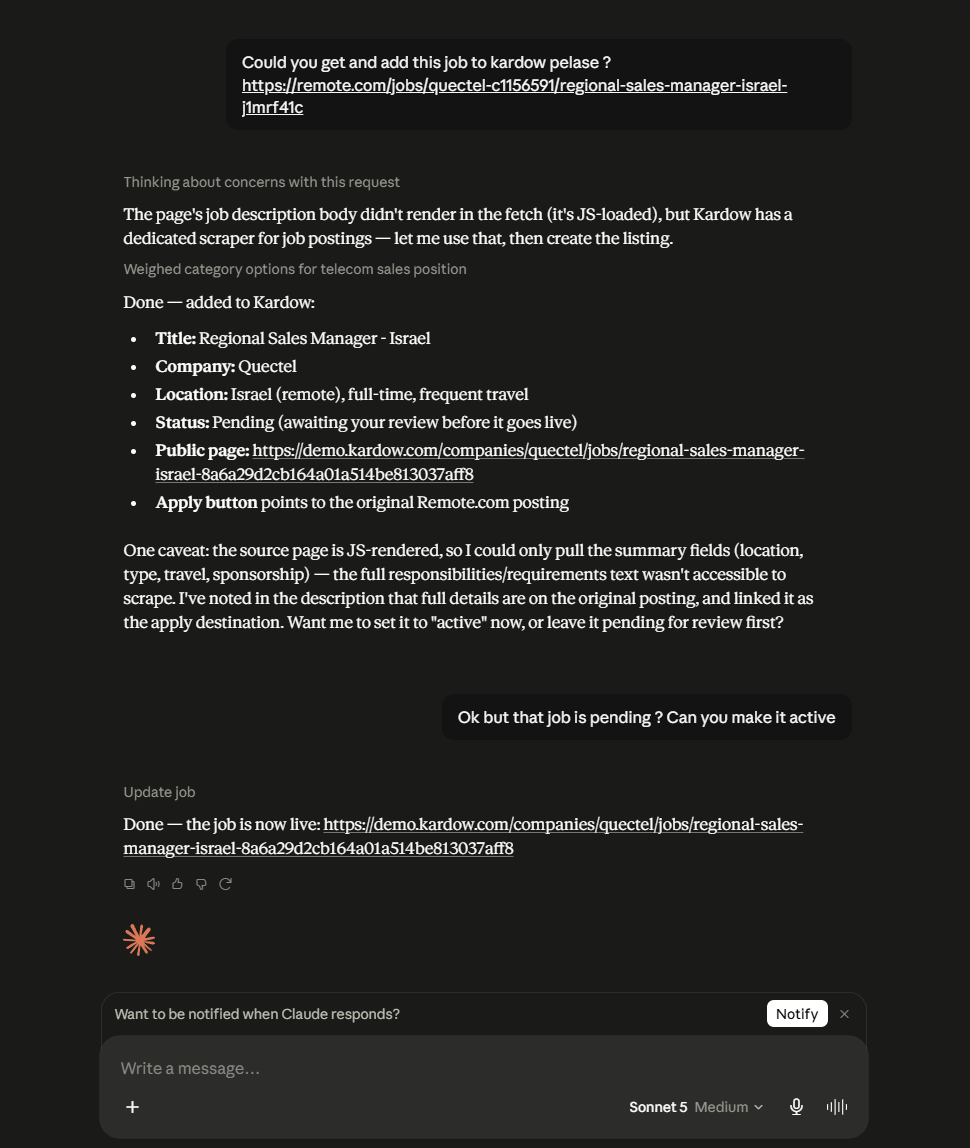
Kardow ships a hosted MCP server that connects your job board to Claude. Once connected, you can manage your board in plain language:- “Post this job to my board: https://careers.example.com/jobs/123”
- “List my pending jobs and publish the ones from Acme Corp”
- “Show me the jobs posted this week with their salaries and share links”
- “Write a blog post about remote hiring trends, add a cover image, and publish it”
- “Find my draft pages and publish the About page”
- “How did my board perform in the last 30 days compared to the previous period?”
upload_asset takes any image URL, stores it on your board, and returns a cdn.kardow.com link to use as a cover image or inside the page body.
Prerequisites
- A Kardow account and job board
- A Kardow API key (created in Settings > API)
- Claude (any of: claude.ai on a paid plan, Claude Desktop, or Claude Code)
Your API key is tied to your organization. Keep it private. Anyone with the key, or with a connector URL that contains it, can manage your board.
Step 1: Create an API key
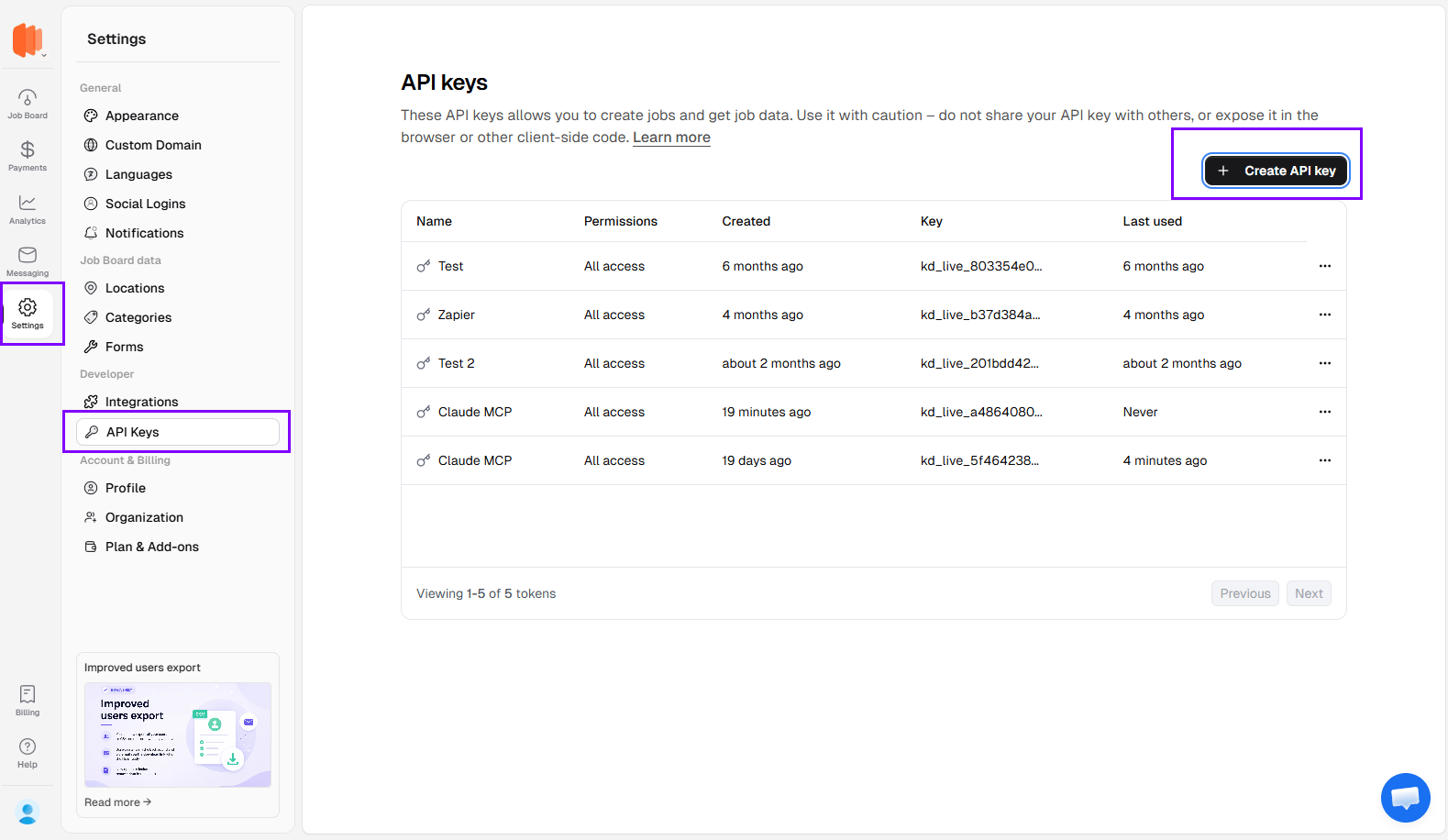
- Go to your Kardow Dashboard
- Navigate to Settings > API
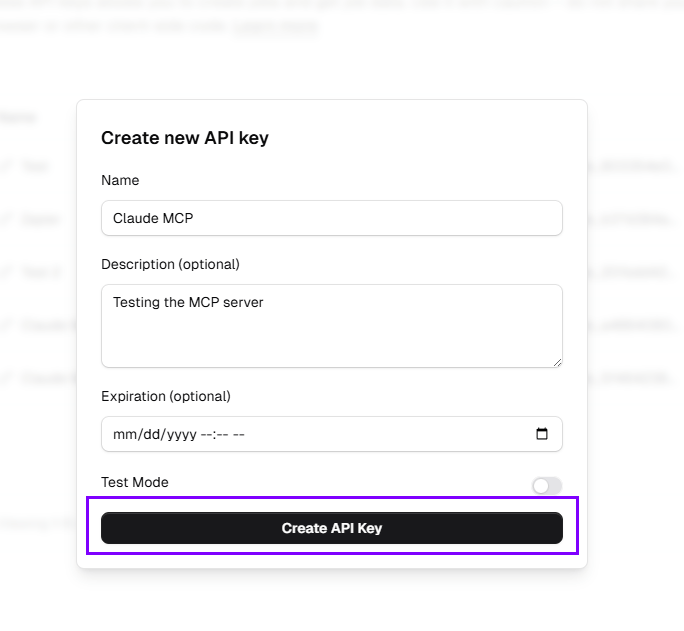
- Click Create API Key
- Copy the key. You will paste it into Claude in the next step
Step 2: Connect Claude
The server lives athttps://mcp.kardow.com. How you pass your key depends on the app.
- claude.ai / Claude Desktop
- Claude Code
- Other MCP clients
claude.ai and Claude Desktop connect via a custom connector. Because these apps cannot send custom headers, your API key goes in the connector URL.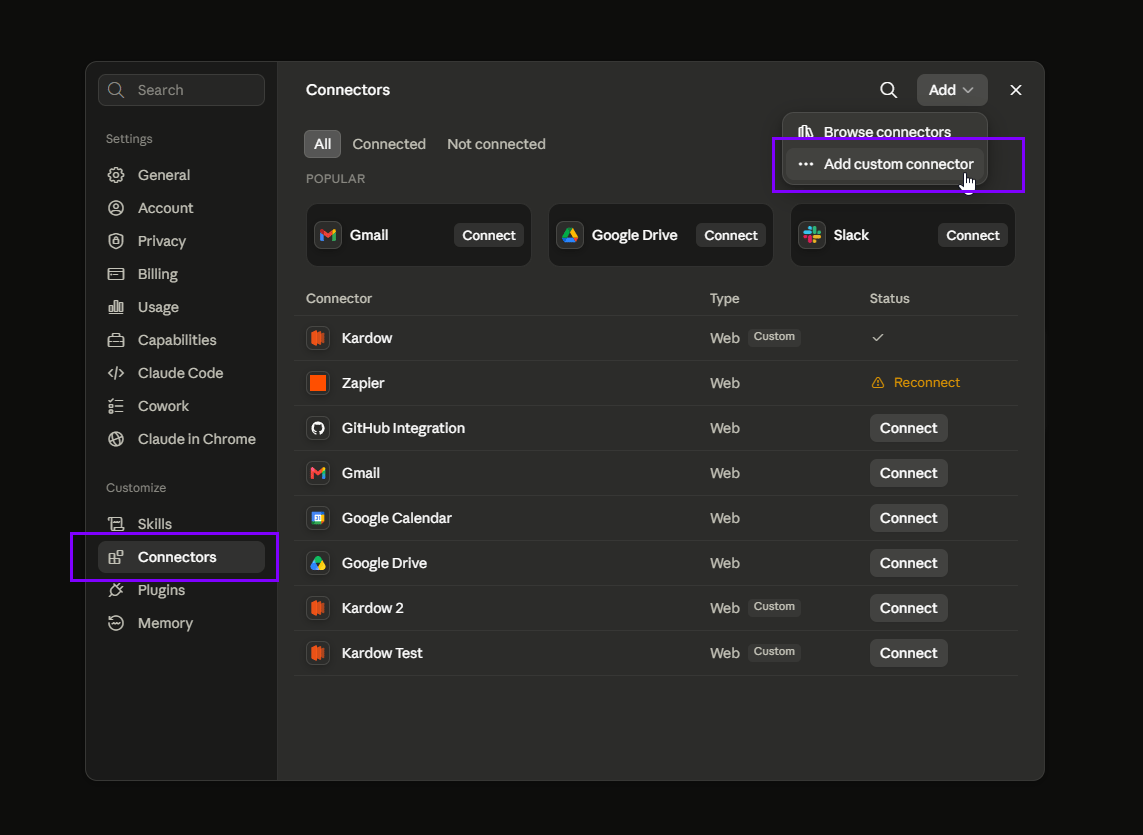
- Open Settings > Connectors and click Add custom connector.
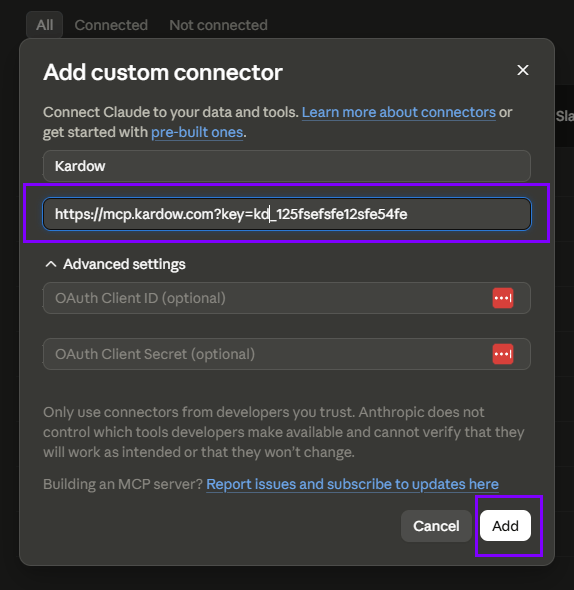
- Fill in the form:
- Name:
Kardow - Remote MCP server URL:
https://mcp.kardow.com?key=YOUR_API_KEY - Leave OAuth Client ID and OAuth Client Secret blank.
- Replace
YOUR_API_KEYwith the key from Step 1, then click Add. - Start a new chat and confirm the Kardow tools appear in the tools menu.
Step 3: Try it
Start a chat and ask Claude to do something with your board:What Claude can do
How Claude places a job
Claude resolves the location before posting, rather than guessing from text:resolve_locationturns"33 Rue des Freres-Moncion, Gatineau"into the Gatineau entity and returns its idcreate_jobreceives that id, so the job lands on the right city page, filter and map
create_job reports back what was actually saved for the two fields that are easiest to get wrong:
Kardow-hosted application form when you expected an external destination, or the location says none, ask Claude to fix it with update_job.
Troubleshooting
Claude says the tools aren't available
Claude says the tools aren't available
Open a new chat after adding the connector. Some clients only load connectors for chats started after they were added. Also confirm the connector shows as connected in your settings.
Every call returns an authentication error
Every call returns an authentication error
Your key is missing or wrong. Check that the URL ends with
?key=YOUR_API_KEY (claude.ai / Desktop) or that your Authorization: Bearer header is set (Claude Code), and that the key is active in Settings > API.How it works
The MCP server is a thin wrapper around the Kardow REST API. Each tool call is authenticated with your API key and subject to the same permissions and rate limits. Nothing is stored on the MCP server; it forwards requests toapi.kardow.com and returns the results to Claude.